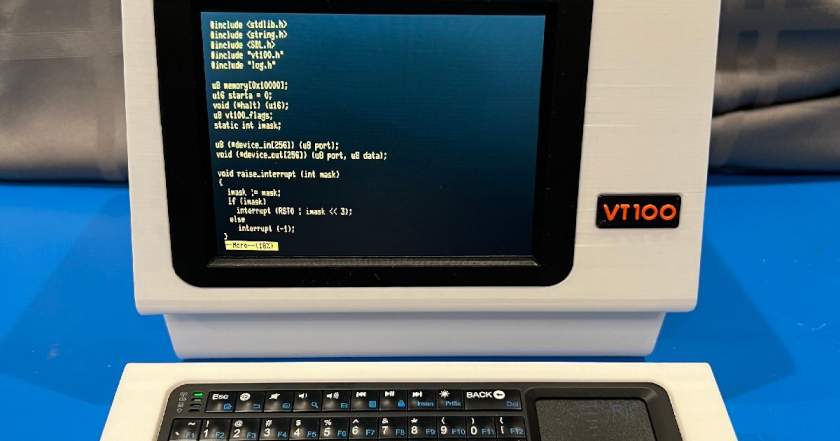

In this comprehensive guide, we'll explore the complete set of VT100 escape codes, from basic cursor movement to advanced terminal manipulation. Whether you're building a text-based user interface, debugging terminal output, or simply curious about how terminals work under the hood, this reference will serve as your go-to resource.
What Are VT100 Escape Codes?
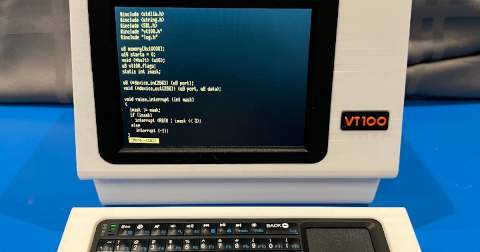
VT100 escape codes are special sequences of characters that control terminal behavior rather than displaying visible text. Originating from the legendary DEC VT100 terminal introduced in 1978, these codes have become an industry standard that modern terminal emulators still support today. The codes typically begin with the ESC character (ASCII 27) followed by additional characters that specify the desired action.
ANSI Compatible Mode
The VT100 terminal operates primarily in ANSI compatible mode, which provides the richest set of control sequences. Here's your complete reference to vt100 escape codes in this mode:
Cursor Movement Commands
Precise cursor control is essential for creating dynamic terminal applications. These vt100 escape codes allow you to position the cursor anywhere on the screen:
- Cursor up:
ESC [ Pn A - Cursor down:
ESC [ Pn B - Cursor forward (right):
ESC [ Pn C - Cursor backward (left):
ESC [ Pn D - Direct cursor addressing:
ESC [ Pl; Pc HorESC [ Pl; Pc f - Index:
ESC D - Next Line:
ESC E - Reverse index:
ESC M - Save cursor and attributes:
ESC 7 - Restore cursor and attributes:
ESC 8
Note: Pn represents a decimal parameter (default is 1), while Pl is the line number (default 0) and Pc is the column number (default 0).
Line Size Commands
These VT100 escape codes control double-height and double-width text display:
- Double-height top half:
ESC # 3 - Double-height bottom half:
ESC # 4 - Single-width single-height:
ESC # 5 - Double-width single-height:
ESC # 6
Character Attributes
Format your text with these styling vt100 escape codes using the syntax ESC [ Ps;Ps;Ps;...,Ps m:
- Ps = 0 or None: All Attributes Off
- Ps = 1: Bold on
- Ps = 4: Underscore on
- Ps = 5: Blink on
- Ps = 7: Reverse video on
Other parameter values are ignored, keeping the command set simple and predictable.
Erasing Commands
Clean up your terminal display efficiently with these vt100 escape codes:
- From cursor to end of line:
ESC [ KorESC [ 0 K - From beginning of line to cursor:
ESC [ 1 K - Entire line containing cursor:
ESC [ 2 K - From cursor to end of screen:
ESC [ JorESC [ 0 J - From beginning of screen to cursor:
ESC [ 1 J - Entire screen:
ESC [ 2 J
Programmable LEDs
Control the terminal's indicator lights using the syntax ESC [ Ps;Ps;...Ps q:
- Ps = 0 or None: All LEDs Off
- Ps = 1: L1 on
- Ps = 2: L2 on
- Ps = 3: L3 on
- Ps = 4: L4 on
Character Set Selection
Switch between different character sets with these G0 and G1 designator codes:
| Character Set | G0 Designator | G1 Designator |
|---|---|---|
| United Kingdom (UK) | ESC ( A | ESC ) A |
| United States (USASCII) | ESC ( B | ESC ) B |
| Special graphics and line drawing | ESC ( 0 | ESC ) 0 |
| Alternate character ROM | ESC ( 1 | ESC ) 1 |
| Alternate character ROM special graphics | ESC ( 2 | ESC ) 2 |
Scrolling Region
Define a scrolling region with ESC [ Pt ; Pb r, where Pt is the top line number and Pb is the bottom line number (must be greater than Pt). The default Pt is line 1, and the default Pb is the end of the screen.
TAB Stops
Manage tab positions with these vt100 escape codes:
- Set tab at current column:
ESC H - Clear tab at current column:
ESC [ gorESC [ 0 g - Clear all tabs:
ESC [ 3 g
Terminal Modes
Configure various terminal behaviors by setting or resetting modes:
| Mode Name | Set Mode | Set Sequence | Reset Mode | Reset Sequence |
|---|---|---|---|---|
| Line feed/new line | New line | ESC [20h | Line feed | ESC [20l |
| Cursor key mode | Application | ESC [?1h | Cursor | ESC [?l |
| ANSI/VT52 mode | ANSI | N/A | VT52 | ESC [?2l |
| Column mode | 132 Col | ESC [?3h | 80 Col | ESC [?3l |
| Scrolling mode | Smooth | ESC [?4h | Jump | ESC [?4l |
| Screen mode | Reverse | ESC [?5h | Normal | ESC [?5l |
| Origin mode | Relative | ESC [?6h | Absolute | ESC [?6l |
| Wraparound | On | ESC [?7h | Off | ESC [?7l |
| Auto repeat | On | ESC [?8h | Off | ESC [?8l |
| Interlace | On | ESC [?9h | Off | ESC [?9l |
| Graphic processing option | On | ESC 1 | Off | ESC 2 |
| Keypad mode | Application | ESC = | Numeric | ESC > |
Terminal Reports
Query the terminal's status with these vt100 escape codes:
Cursor Position Report:
- Invoke:
ESC [ 6 n - Response:
ESC [ Pl; Pc R(where Pl = line number, Pc = column number)
Status Report:
- Invoke:
ESC [ 5 n - Response:
ESC [ 0 n(terminal OK) orESC [ 3 n(terminal not OK)
What Are You (Device Identification):
- Invoke:
ESC [ corESC [ O c - Response:
ESC [ ?1 ; Ps C- Ps = 0: Base VT100, no options
- Ps = 1: Processor option (STP)
- Ps = 2: Advanced Video option (AVO)
- Ps = 3: AVO and STP
- Ps = 4: Graphics processor option (GO)
- Ps = 5: GO and STP
- Ps = 6: GO and AVO
- Ps = 7: GO, STP, and AVO
- Alternative invoke:
ESC Z(not recommended)
System Commands
Reset Terminal: ESC c
Confidence Tests:
- Fill screen with "Es":
ESC # 8 - Invoke test(s):
ESC [ 2 ; Ps y- Ps = 1: Power-up self test (ROM checksum, RAM, NVR, keyboard, and AVO if installed)
- Ps = 2: Data Loop Back (requires loop back connector)
- Ps = 4: ETA Modern Control Test (requires loop back connector)
- Ps = 8: Repeat selected test(s) indefinitely (until failure or power off)
VT52 Compatible Mode in VT100 Escape Codes
For legacy compatibility, VT100 terminals also support VT52 mode with a simplified set of escape codes:
- Cursor Up:
ESC A - Cursor Down:
ESC B - Cursor Right:
ESC C - Cursor Left:
ESC D - Select Special Graphics character set:
ESC F - Select ASCII character set:
ESC G - Cursor to home:
ESC H - Reverse line feed:
ESC I - Erase to end of screen:
ESC J - Erase to end of line:
ESC K - Direct cursor address:
ESC Ylc(see note below) - Identify:
ESC Z(response:ESC / Z) - Enter alternate keypad mode:
ESC = - Exit alternate keypad mode:
ESC > - Enter ANSI mode:
ESC <
Note on Direct Cursor Address: Line and column numbers are single character codes whose values equal the desired number plus 37 (in octal). Line and column numbers start at 1.
Practical Applications of VT100 Escape Codes
Understanding vt100 escape codes unlocks numerous practical applications:
- Terminal-based user interfaces: Create sophisticated TUIs with menus, forms, and interactive elements
- Progress indicators: Build dynamic progress bars and status displays
- Syntax highlighting: Add color and formatting to code output
- Log file visualization: Make logs more readable with colors and structure
- Development tools: Build better debugging interfaces and command-line applications
- System administration: Create informative dashboards and monitoring tools
Conclusion
VT100 escape codes remain relevant today because they provide a universal, lightweight method for terminal control that works across virtually all modern terminal emulators. From simple cursor movements to complex screen manipulations, these codes give developers fine-grained control over the terminal display without requiring graphical interfaces or heavy dependencies.
Whether you're maintaining legacy systems, building modern CLI tools, or exploring the history of computing, mastering vt100 escape codes is a valuable skill. These sequences represent decades of terminal evolution and continue to power countless applications, from SSH clients to sophisticated text editors like Vim and Emacs.
By keeping this reference handy, you'll be equipped to leverage the full power of terminal control in your projects. The next time you need to create dynamic terminal output, you'll know exactly which VT100 escape codes to use.
This reference is based on the VT100 Programming Reference Card from Digital Equipment Corporation (DEC). While modern terminal emulators support many extensions and additional codes, the VT100 standard remains the foundation of terminal control.